From generator to slicer: making your first file
The whole route on this site, from choosing settings to a file in your slicer, and what you still check yourself before printing.
Updated 2026-10-27
What the site does and what it doesn't
Each tool is a parametric model: the shape is built from the numbers and text you enter. The site checks that your settings fit together, shows a live preview and builds the final file on the server.
It doesn't know your printer, your filament or how tight your printer prints holes and slots. Those you check in the slicer, and for parts that have to fit, with a small test print.
1. Start from the closest example
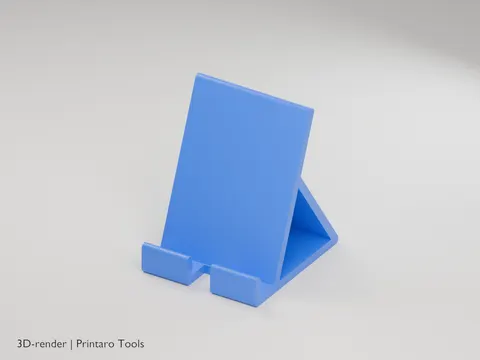
Many tools have presets above the settings, such as "Tablet" on the phone stand or "Business cards" on the custom box. A preset only fills in settings; you can change any of them afterwards. "Reset to defaults" takes you back to where the tool started, and Undo goes back one step.
The examples under the tool show two of these settings as 3D renders, with the values that differ between them.
2. Change the settings that decide the fit
Enter real measurements in millimeters. Read the label of each size: holders, boxes and adapters usually ask for the size of what goes in or on them (the phone, the cards, the tube) and add the walls around it, while signs and tags ask for the size of the part itself. The measuring guide explains how to measure.
If a combination doesn't work, the setting is highlighted with a short reason, and the preview pauses until it is fixed.
3. Check the preview
- The numbers under the preview are the outside size of the whole layout: width × depth × height in mm.
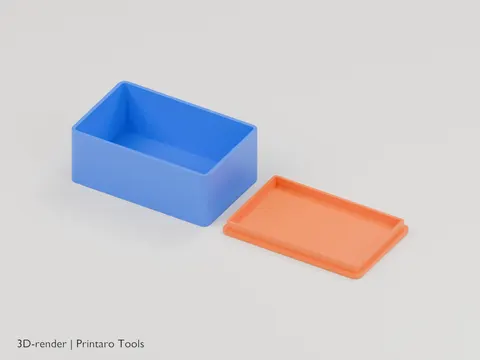
- Pick your printer in "Bed size". If the layout is bigger than the bed, a warning appears. Tools that place several parts next to each other (a box and its lid, the wagons of a train) need more room than one part.
- The weight shown is for a fully solid PLA print. A normal print with infill is lighter. "Estimate cost" opens the cost calculator with that weight.
- Multi-part models have an "Explode" slider that pulls the parts apart so you can see each one.
- The preview is built at a lower resolution so it stays quick. The downloaded file has smoother curves, but the same sizes.
4. Choose a file format and generate
Tools with more than one color offer a choice. "STL" is one solid body that works in every slicer. "3MF · multi-color" keeps each colored part separate with its own filament slot. Some tools also offer "ZIP · separate parts": one STL per part. See STL or 3MF for when to use which.
Click "Generate". When many people generate at the same time you'll see your place in the queue. When it says "Your model is ready.", click Download. The file stays available for a limited time (shown under the button), so download it then.
5. In the slicer
- Open the file. Sizes are in millimeters; if the model looks far too small or too large, the slicer assumed other units.
- The models are exported in the orientation they are meant to print in. Don't rotate them unless the tool's printing tips say so. Print orientation and strength explains why orientation matters.
- A 3MF from this site is a Bambu Studio project with Bambu Lab's standard X1 Carbon settings. Select your own printer and filament after opening it.
- Check that the parts sit flat on the bed and fit on it.
- Look through the layer preview for loose islands or parts hanging in the air. The tools are designed to print without supports where possible; the tool page says when one needs them.
- Read the printing tips on the tool page: they say where to change filament for two colors, and which layer height helps with small text.
6. Test small before you print big
For anything that has to fit (a lid, a clip, coupled parts), first print the smallest version that still shows the fit: a box with a low height, a name train with two letters. If it is too tight or too loose, change the clearance setting. When parts don't fit explains how.
Something went wrong while generating? Use "Report this problem" under the error. It sends the tool, the step that failed and the error message along with what you write. Your settings are not included, so mention the ones you changed.