Designing a box that fits: inside size, walls and lid
How to size a printed box from what goes in it, how walls, lids and dividers change the space, and what to check before printing a large one.
Updated 2026-10-27
Start from what goes in
The custom box asks for the inside size: width, depth and height of the space you want. Measure the things you want to store, add the room you need to get them in and out, and enter that.
The tool adds the walls around it. The outside is wider and deeper by two wall thicknesses, and taller by the floor. With the default 2 mm wall and 2 mm floor, an 80 × 50 × 30 mm inside becomes an 84 × 54 × 32 mm box.
Walls and floor
Wall thickness and floor thickness go from 0.8 to 5 mm. Thin walls save filament but flex more; for a box that is carried around or holds heavy things, keep the default 2 mm or go thicker. Check the wall in the slicer's layer preview: if it shows a thin gap or a single wobbly line between the outer walls, change the thickness a little so it fills with whole lines.
The corner radius rounds the outside corners. The inside corners follow it, smaller by the wall thickness.
Which lid
Both lids use the fit tolerance, the gap between lid and box (0.1 to 0.6 mm, default 0.25 mm). If the lid sticks, raise it; if it falls off, lower it. How tight a printer prints depends on the printer, the filament and the slicer, so the right value is found by printing.
- None: an open tray.
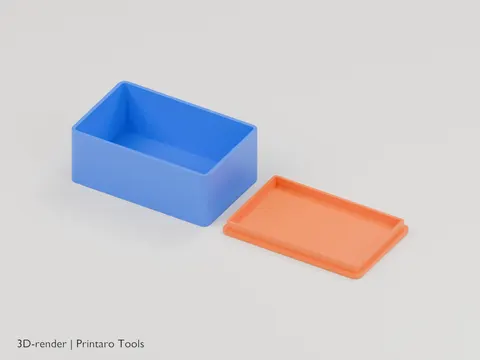
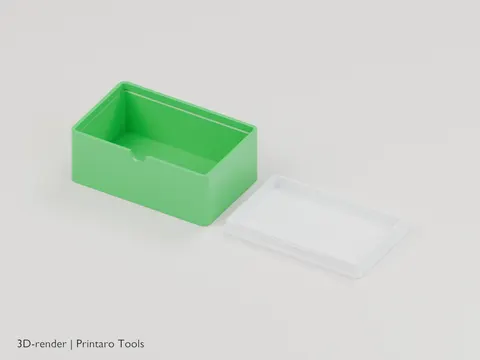
- Lift-off: a flat lid with a rim that drops into the box. The rim is 1.6 mm wide and reaches up to 5 mm down (a third of the inside height for low boxes). Things that fill the box right to the walls should stay below that rim.
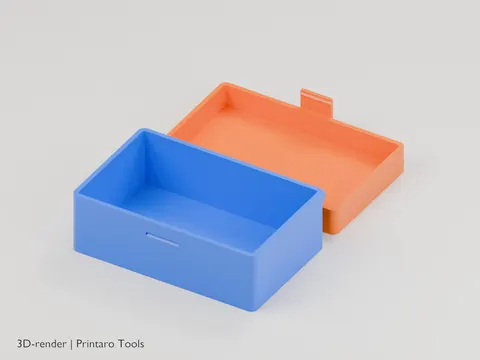
- Sliding: a 1.6 mm panel that slides into a groove in the walls just under the top. It takes about 3 mm off the usable height, so add that to the inside height you enter.
Dividers
Dividers across and lengthwise split the inside into equal compartments. Each divider is 1.2 mm thick, so a compartment is a little smaller than the inside size divided by the number of compartments. With a lid, the dividers stop below the rim or the sliding panel so the lid still closes.
Make sure it fits your printer
The lid is placed next to the box, so the layout is about twice as wide as the box. Set "Bed size" under the preview: it warns when the layout is too big. If it is, open the 3MF in the slicer, split the object into its parts and print the box and the lid one after the other.
The tool accepts up to 250 mm inside. A box that size needs a large bed and takes a long time to print.
Test before you print the whole box
Print the box with the same width and depth but an inside height of 10 or 15 mm, with its lid. That shows whether the contents fit and how the lid feels, in a fraction of the time and filament. Then generate the full height.
Other box tools
The hinged box has a lid that prints already attached, the snap-fit box has a lid that clicks shut, and the threaded container has a screw-on lid. Each has its own settings and printing tips.